


Hob, Grill and Oven Safety Timer
Kitchen Oven Guard.jpg
http://www.mckelvie-solutions.co.uk/ovenguard/images/sampledata/OvenGuard/Kitchen Oven Guard.jpg
Student accommodation hob oven guard.jpg
Oven Guard reduce risk of cooker fires.jpg
kitchen safety for cookers Oven Guard.jpg
Student cooker oven guard.jpg


User Configurable
The SwitchBox comes preprogrammed in software with a 30 minute countdown. When the red button is pressed the LCD countdown shows time remaining before the electrical supply is turned off. Different countdown times are available on request.
Easy to Use
Once installed OvenGuard is operated by the simple press of the red button on the SwitchBox. To turn off the electrical supply press the button again and the oven, hob and grill are turned off.
Installation
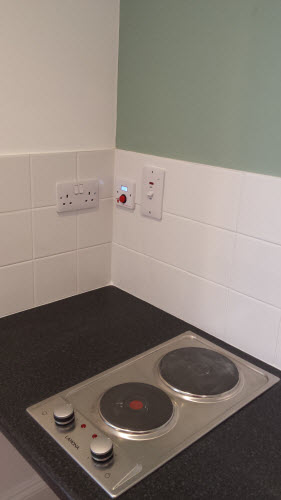
Easy to install by a qualified electrical engineer. OvenGuard is suitable for new installation and retro-fitting into existing kitchens to electrical ovens, hobs and grills to reduce the risk of cooker fires.
Template Details
Side Menu
 Here you can see live demonstration of Side Menu with icons and rich text.
Side Menu is very unique vertical menu with slide-out panels. This menu is extremely efficient when you have complex navigation with a lot of menu items.
To setup Side Menu you just need to configure module parameter “Menu Class Suffix” appropriately and the menu system will take care of the rest. There are very detailed instructions in template documentation.
Side Menu with Icons and Rich Text
Side Menu can present menu items with icons and descriptive text, pretty much like Main Menu.
To setup icons you need to configure menu items appropriately just like Main Menu. There are very detailed instructions in template documentation.
Side Menu with RTL Support
Side Menu works flawlessly even in RTL layout, in which sub-menu panels will slide out from right to left.
Rich Menu
On top of this page, you can see live demonstration of Rich Menu. 
With this menu system you can attach icons and add descriptive text to each menu item making them much clearer and visually appealing. The best thing is you can use the default menu module built-in Joomla!, no need to install external menu modules.
Menu items with descriptive text
JSN Mico allows you to present menu items with descriptive text placed on a separated line at the bottom of main text.

To setup text strings you need to go to menu item settings and add symbol combination “(=)” as separator between primary and secondary text.

In the example above text “Home” is the primary text and “Lorem ipsum dolor sit...” is the secondary text. Separator between them is the symbol combination “(=)”. Really simple and elegant solution.
Menu items with icons
JSN Mico allows you to assign up to 20 predefined icons for items in main menu.

To setup icons, you need to find template parameter Main Menu Icons and choose any icon you want to display from drop-down panel.

Combination of descriptive text and icons
You can use combination of descriptive text and icons to get Rich Menu in it's best presentation.

Main Menu
On top of this page, you can see live demonstration of Main Menu with icons and rich text.
Main Menu is very powerful menu built with clean accessible XHTML code structure and effective drop-down submenu panels.
Main Menu Icons

You can attach any of 20 predefined icons to menu items to make them more appealing.

To set up icons, you need to go to menu item settings and add symbol combination icon-xxx to menu item’s parameter Link CSS Style, where xxx is the icon name.
Main Menu Rich Text

You can add descriptive text to menu items to make them much clearer.

To set up descriptive text, you need to go to menu item settings and add descriptive text to menu item’s parameter Link Title Attribute.
Main Menu Icons and Rich Text in combination

You can set up menu items to utilize both icons and rich text in combination. Take a look at main menu on this page to see live demonstration.
Main content only
Here you can see how content are presented only in main content area. Sometimes, you will need a lot of space to present content and that how it will looks like.
Lorem ipsum dolor sit amet, consectetur adipiscing elit. Fusce suscipit dui eu augue faucibus non interdum odio elementum. Praesent faucibus lorem sed massa condimentum in semper lacus aliquet. Aliquam viverra erat a libero accumsan a egestas lorem hendrerit. Donec id elit dolor. Phasellus est ligula, hendrerit id vehicula sit amet, placerat ut diam. Sed eu fringilla lectus. Aliquam augue lorem, suscipit eu consequat vel, viverra id diam. Praesent lectus elit, interdum a imperdiet vitae, cursus at velit.
Layout variation Left | Innerleft | Center
This is 3 columns layout with content presented on the right side, which is typical for blog sites. On left side columns you can present modules with sumplementary information for main content. The width of side columns can be adjusted conveniently via template parameters.
OvenGuard SwitchBox
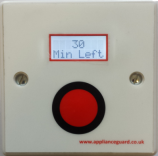
This innovative product is a simple, electrical safety device that sits discretely next to an electric cooker. The OvenGuard SwitchBox counts down the time remaining which is displayed in the LCD window and bleeps when there is one minute left.
OvenGuard GuardBox
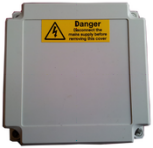
When the OvenGuard GuardBox receives the signal from the SwitchBox it turns on the electrical supply to the oven appliance. When the time has elapsed the signal is switched off, which turns off the electrical supply, making it safe if no one is in attendance.